![Logo-2.png]](https://support.medimap.ca/hs-fs/hubfs/Logo-2.png?height=40&name=Logo-2.png)
Step 1: Accessing Your Medimap Invoice
- Please open the invoice email that Medimap has sent to your designated billing email.
Step 2: Initiating Payment
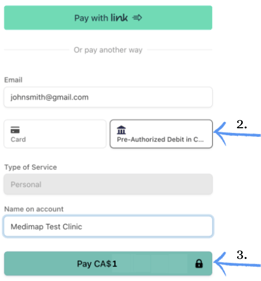
- After opening the Medimap invoice email, click the 'Pay this invoice' option. This will redirect you to the payment selection page.
- Select the 'Pre-Authorized Debit' payment option.
- Click 'Pay CA $X' to proceed.
Step 3: Completing steps for PAD Payment
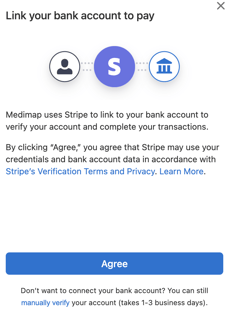
- A "Link your bank account to pay" pop-up will appear. To proceed, click 'Agree'.
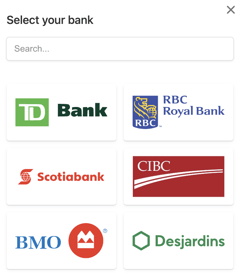
- Search for or select the bank you are affiliated with.
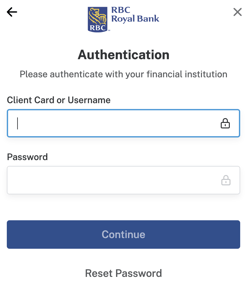
- To authenticate with your financial institution, please enter your banking Username or Access Card number and Password.
- It may take up to 3 minutes to authorize your banking information and establish a connection with your bank.
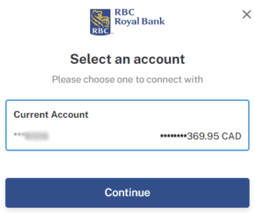
- Choose the account you wish to connect with, then click 'Continue'.
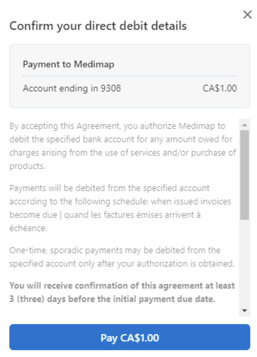
- Confirm your direct debit details and click 'Pay CA $X'.
- Congratulations, you have successfully set up PAD Payment. A confirmation pop-up will appear!
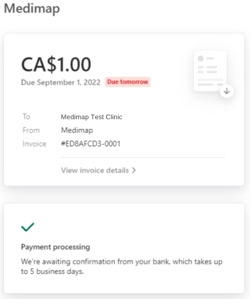
Your PAD Payment setup is now completed! If you have any questions or run into issues during the setup process, please contact support@medimap.ca.